Compress Images Quickly with Our Image Compressor Online
Need to reduce image file size without much hassle? Our Image Compressor lets you shrink images…
Remove hidden metadata from your photos with the Image Metadata Remover. Upload an image to clear embedded details such as camera information, location data, and other metadata before sharing it online.
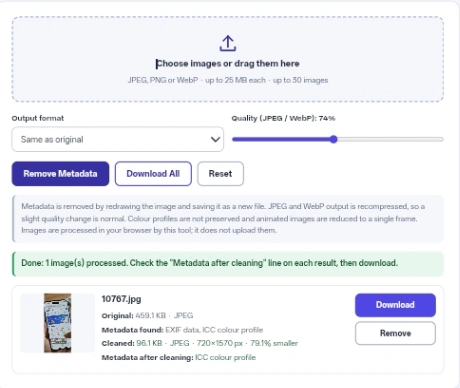
Metadata is removed by redrawing the image and saving it as a new file. JPEG and WebP output is recompressed, so a slight quality change is normal. Colour profiles are not preserved and animated images are reduced to a single frame. Images are processed in your browser by this tool; it does not upload them.
To clear hidden data from your pictures using the image metadata remover, follow these steps.
This image metadata remover supports processing multiple files at once. You can load up to 30 pictures in a single batch, making it easy to handle entire folders of photos without clicking through them one by one.
The before-and-after reporting shows exactly what data was detected. Each item in the list displays a Metadata found: line before processing and a Metadata after cleaning: line afterward, letting you verify that the information is gone.
You also gain the ability to convert formats while cleaning. Selecting a different file type from the dropdown processes the picture and outputs it in the new format without requiring a separate converter tool.
When you load a file, the code analyzes it to find EXIF data, GPS coordinates, camera models, XMP, IPTC, ICC colour profiles, and text comments. To strip this information, the tool does not just delete text from the file. Instead, it decodes the image, draws the visible pixels onto an internal canvas, and saves a completely new file.
This redrawing process brings a few hard limits. Files cannot exceed 25 MB in size. Pictures with more than 50,000,000 pixels (50 megapixels) will trigger an error, as they require too much memory for a web browser to draw at once.
Because the file is re-encoded, there are visual side effects. Animated images lose their motion and are reduced to a single still frame. If you convert a transparent image to JPEG, the empty background space is filled with solid white. Additionally, PNG output is a lossless format, so the quality slider disables itself automatically when PNG is selected.
Smartphone photo with location data -> Leave format as Same as original and quality at 90% -> The image metadata remover produces a new JPEG. The report changes from showing GPS and camera details to None detected, and the file size may change slightly.
PNG containing editing software comments -> Change format to JPEG -> The tool strips the XMP text chunks, fills the transparent background with white, and downloads the file as filename-clean.jpg.
Batch of large WebP product images -> Change format to PNG -> The tool processes them losslessly. The quality slider becomes inactive, the ICC colour profiles are discarded, and the user downloads the new files in one click.
Always keep a backup of your original photos. Because this tool creates a recompressed copy by drawing the pixels again, you will permanently lose the exact original file quality if you delete the source image.
When cleaning a large batch and clicking the button to download everything at once, your browser might show a popup asking for permission to download multiple files. Allow this permission so all the files can save directly to your computer.
If you are working with wide-gamut photographs where exact colors matter heavily, test one file first. Stripping the embedded colour profile means the shades might look slightly different on certain monitors after processing.
All processing happens locally in your web browser. The code decodes the images, draws them, and creates the cleaned copies using your device’s memory. It never uploads your files to a server, and no network requests are made during processing. The pictures and their data are removed from the page’s memory when you press the reset button, reload the page, or close the tab.
The image metadata remover is a practical way to strip hidden location and camera data directly in your browser. By redrawing the pictures from scratch, it keeps only the visible pixels in the new files, and the report shows which common metadata types are still detected.
When saving a new file, the browser applies its own compression. If your original file was heavily compressed and you set the slider to 100%, the new copy might require more data to store the same pixels.
No. It only strips hidden data embedded in the file code. Any text, faces, or landmarks that you can see with your eyes will remain in the new picture.
This means the code scanned the file and could not find any of the specific metadata types it looks for, such as EXIF, GPS, or XMP.
No. It only accepts JPEG, PNG, and WebP formats. If you try to drag and drop other formats, it will reject them and show an error message.
The tool will show an error saying the file could not be read or decoded. It will skip processing that specific picture while finishing the rest of the batch.