Easily Remove PDF Restrictions with a PDF Document Unlocker Online
A PDF with editing, copying, or printing restrictions can be difficult to work with. A PDF…
Need to change a file into PDF without installing software? Our PDF Converter lets you convert files online in a few simple steps. Upload your file, choose the required option, and get your PDF ready in moments.
This tool creates PDF files from images and plain text. It does not convert existing PDFs into other formats.
Many people need to turn photos or plain notes into an organized document, and a PDF Converter is the exact tool for that job.
Using this PDF Converter gives you access to two completely different input methods in a single interface. When working with pictures, you have full control over the page order before generating your file. The tool displays a list with a thumbnail, file name, and file size for every picture you load. You can click the Up, Down, or Remove buttons on any item to arrange your pages correctly without having to rename your files beforehand.
When you switch to typing, a live character counter tracks your length directly under the box so you know exactly how much space your pasted notes occupy. The tool also provides a clear summary after finishing any job. Right above the download link, it prints the exact page count and the final file size of your new document. This immediate feedback helps you decide if the result is small enough to send as an email attachment without needing to open your computer’s file properties menu.
The logic behind this PDF Converter relies on strict mathematical rules to format documents as standard PDF 1.4 files. In the image mode, the tool accepts JPG, PNG, WebP, GIF, and BMP files. You are allowed exactly 50 pictures per job, provided no single file exceeds 25 MB. Every picture is redrawn onto a white background and re-encoded as a JPEG at your chosen Image quality (where High uses a 0.92 multiplier, Medium uses 0.75, and Low uses 0.5). Because of this JPEG conversion process, any transparent areas in your original images turn white. To maintain browser performance, the processor restricts large image dimensions; any picture with a side longer than 4096 pixels is scaled down to 4096 pixels.
The text mode operates with its own specific constraints. It accepts a maximum of 500,000 characters per conversion. The output strictly uses Courier, a fixed-width font, and calculates a line height equal to 1.35 times your selected font size. The processor determines text wrapping by calculating the space between your chosen margins, breaking words that are too long to fit, and converting any tab keystrokes into four regular spaces. The internal text engine only supports the Latin-1 character set. If you paste characters outside this range, the tool silently substitutes them with question marks.
Menu options change how the internal math works. If you select Fit to image for your picture size, the tool completely disables the Orientation and Margin menus, as the page canvas simply adopts the picture’s dimensions at a scale of 0.75 points per pixel. Otherwise, it uses exact standard page points (A4 is calculated as 595.28 by 841.89 points, while US Letter is 612 by 792 points). The system enforces these inputs strictly; if you click the conversion button without loading anything, you will trigger exact error messages reading “Please add at least one image first.” or “Please type or paste some text first.”
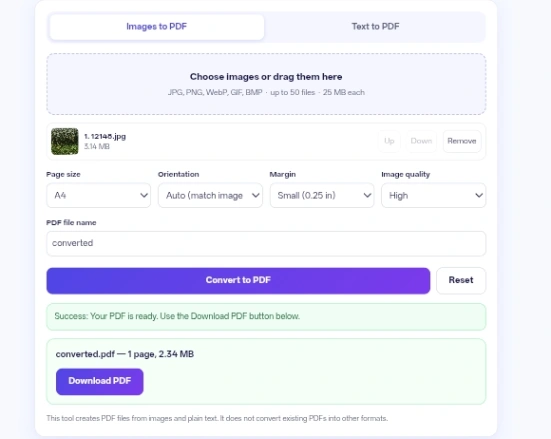
Input: 5 phone photos of tax receipts -> Action: Load them into the images tab, select Portrait for the Orientation, set the page size to A4, and click convert -> Result: One organized, five-page document ready to print.
Input: A wide website screenshot -> Action: Select Fit to image for the page size -> Result: A custom-sized document containing the entire screenshot without awkward white borders or forced cropping.
Input: A long list of pasted meeting notes -> Action: Choose the Text mode, set the font to 12 pt, and run the PDF Converter -> Result: A multi-page plain text document with consistent formatting and automatic line breaks.
Input: An image folder with confusing file names -> Action: Drag all the files into the drop zone, visually verify the sequence using the thumbnails, and press the Up or Down buttons to sort them before converting -> Result: A document with images in the correct chronological order, regardless of what they were named.
If you plan to email the finished document but your original pictures are massive, change the Image quality setting in the PDF Converter to Low (smaller file) to shrink the final storage size.
Always review the success message after processing text. It will specifically tell you if any special characters had to be replaced with question marks.
Use the Reset button when starting a completely different job. This clears all leftover images, cached memory, and typed text, returning every single menu to its default state.
If your pictures contain small handwriting that is hard to read, select the High quality setting and choose None for the Margin menu to give the picture as much space on the page as possible.
Everything happens entirely inside your web browser. When you select files or type text, the code processes that data locally using your device’s memory via JavaScript and the HTML Canvas API. It does not upload your photos or notes to an external server, nor does it call out to an external web service to do the conversion work. The generated file exists only on your current page until you click the download link, and clicking the reset button clears the file data from your browser memory entirely.
Turning basic files into standard documents takes just a few clicks with this PDF Converter. It keeps the entire process local to your computer while giving you exact control over margins, page formatting, and picture quality.
No, this tool only generates new files from images or plain text. It does not convert existing documents into other formats, merge them, or allow you to edit them.
The processor will only read the first frame of the animation and place that single still image on the page.
The processor calculates the available vertical space using your selected page size, margin, and font size. Once a page fills up with wrapped lines of text, it automatically generates a new page and continues placing your words.
No, the text mode produces plain Courier text only. There are no options for italics, bold formatting, custom fonts, or colored text.
The tool only accepts specific image formats (JPG, PNG, WebP, GIF, and BMP). If you try to select an unsupported file type, the processor simply skips it and displays a notice message listing the ignored files.
If you type symbols like an asterisk, a slash, or a period in the PDF file name box, the code automatically replaces them with hyphens to prevent file saving errors on your computer’s operating system.