Image Metadata Tool – View & Remove EXIF Data Online
View image EXIF metadata and remove unwanted data before sharing your photos online. [image_metadata_tool]
Need to reduce image file size without much hassle? Our Image Compressor lets you shrink images online in a few clicks, making them easier to upload, share, and store.
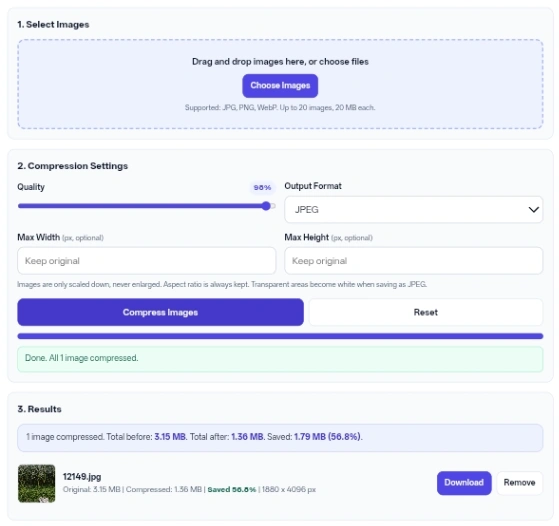
Drag and drop images here, or choose files
Supported: JPG, PNG, WebP. Up to 20 images, 20 MB each.
Images are only scaled down, never enlarged. Aspect ratio is always kept. Transparent areas become white when saving as JPEG.
No images selected yet.
Many websites have strict limits on photo uploads, which is exactly why a browser-based Image Compressor comes in handy. Follow these steps to reduce file size quickly.
Go to the Select Images section and either drag and drop your files into the dotted area or click the Choose Images button to load your JPG, PNG, or WebP files.
Adjust the Quality slider between 10 and 100 to determine how much the picture is compressed.
Pick your desired file type from the Output Format dropdown.
Enter whole numbers into the Max Width or Max Height fields if you want to resize pictures down, or leave them empty to keep the original dimensions.
Click the Compress Images button to process the list.
Review the results list and click Download next to each item you want to save.
Processing multiple files at once saves a lot of clicking, and this Image Compressor accepts batches of up to 20 files simultaneously. You get a clear summary box showing the total size before, the total size after, and how much was saved across the entire batch, alongside individual percentage readouts for every item in the list.
Another advantage is built-in format conversion. It allows people to turn heavy PNG graphics into standard JPEG files, or modernize old photos by saving them in the WebP format. The interface also separates visual compression from physical resizing, meaning you can shrink the file size strictly by lowering the quality, or combine it with smaller pixel dimensions for even greater savings.
When the Image Compressor re-encodes a file, it draws the picture onto a hidden HTML canvas inside your web browser. This method strips away EXIF metadata, meaning camera settings, dates, and GPS coordinates are not kept in the final output. The maximum allowed dimension for width or height is 16384 pixels, and the logic only scales down, so a small picture is never stretched or enlarged.
If you define both a width and a height constraint, the final dimensions will respect whichever limit is hit first, keeping the original aspect ratio perfectly intact. Converting formats also affects transparency. Because standard JPEG files do not support clear backgrounds, any transparent areas in a PNG will turn completely white during the conversion. Finally, the WebP option only appears in the dropdown if your specific web browser has the native ability to encode that format. While the operation runs, a progress bar tracks the queue, and specific success or failure messages appear depending on whether individual items were completed successfully.
Input: A 3 MB JPG photo with dimensions of 4000 x 3000 pixels. Action: Set the Max Width to 1280, leave the height blank, keep the Quality at 80, and hit Compress Images. Result: The Image Compressor outputs a 1280 x 960 pixel file, displaying the original size, the new size, and the percentage saved.
Input: A PNG screenshot of a desktop window. Action: Select WebP from the Output Format dropdown (if your browser offers it) and set the quality slider to 75. Result: The tool generates a file named name-compressed.webp at the original dimensions. The results list shows the original size, the new size, and the percentage saved, so you can confirm it actually came out smaller.
Input: A 2000 x 1000 pixel graphic. Action: Enter 800 in the Max Width field and 800 in the Max Height field. Result: The output is strictly scaled to 800 x 400 pixels to maintain the original 2:1 proportions without stretching.
Check the final byte count on the results screen, because applying a high quality setting to an already optimized graphic can actually increase the file size.
Keep your original files in a safe folder, as the re-encoding step is lossy and you cannot reverse the compression later.
If you change a slider or dimension after generating your results, you must click the main processing button again to apply those new settings to the files.
Avoid using the dimension fields entirely if you want your photo to stay exactly the same physical size on the screen.
Click the Remove button next to a failed or unwanted item to clear it from the batch before processing everything else.
All image processing happens directly in your browser using local JavaScript and HTML canvas elements. The tool does not upload the files to an external server or API, and does not write them to a database. Neither cookies nor local storage are used to track your activity or save your processed graphics.
Whether you are preparing graphics for a blog or shrinking attachments for an email, this Image Compressor does the work entirely on your device. The combination of visual quality controls and pixel resizing gives you everything needed to hit strict upload limits.
The results are generated as individual files in the browser, so each output must be saved separately using its own Download button. There is no ZIP archive feature available in the code.
The script will reject the file immediately, show an error message, and prevent it from being added to the processing queue.
No. The allowed inputs are strictly limited to JPG, PNG, and WebP files. Any other file type will trigger an unsupported format error.
This usually happens if the source file was already heavily optimized and you set the slider closer to 100. The results list will show a warning text highlighting the percentage increase when the new version is larger.
The text boxes require whole numbers. Entering a decimal or a value outside the 1 to 16384 range will display an error message, and compression will not start until you correct the value.
Click the Reset button to empty the file list, reset the slider back to 80, and clear all previous messages and progress bars.