Solve Math Problems Faster with Our Scientific Calculator Online
Need to work with advanced math calculations? Our Scientific Calculator helps you solve trigonometry, logarithms, powers,…
Want to know how much you will actually pay after a discount? This Discount Calculator quickly shows the discount amount, final price, and how much you save, making it easy to check any sale price.
Enter the details and click Calculate to see the result.
Amounts are shown rounded to 2 decimal places.
Figure out the exact final price of an item using this discount calculator. To get started, select your preferred calculation mode from the dropdown menu and follow these steps.
This discount calculator offers two distinct modes to handle different shopping situations. You can work forward from a starting price to find your final cost, or work backward from a known sale price to discover the exact percentage you are saving.
A major benefit is the ability to handle stacked promotions. Store sales often offer a baseline percentage off, plus an additional percentage off at the register. The interface automatically processes these sequential reductions correctly so you do not have to do the math manually.
You also have a dedicated tax field, allowing you to see the exact out-of-pocket cost rather than just the pre-tax sticker price. If a result is already displayed, changing the currency dropdown refreshes it with the new symbol, and the built-in copy function formats your final breakdown neatly for sharing or saving in your notes.
The logic behind this discount calculator relies on standard retail math rather than simple addition. When you apply both a primary discount and an extra discount, the system applies the first percentage to the Original Price. It then applies the Extra Discount (%) to that new, lower subtotal, not the original amount.
Tax is calculated only after all discounts have been subtracted. The final outputs include a detailed breakdown showing the exact money saved at each step, alongside an Effective Total Discount percentage. This effective rate shows you your true overall savings compared to the starting price.
There are a few hard limits programmed into the fields. Percentages cannot exceed 100 or drop below zero, and the sale price cannot be higher than the starting price. Additionally,
the Currency Symbol dropdown only changes the visual text displayed on the screen. It does not connect to live exchange rates or convert values between currencies. All final monetary figures are automatically rounded to two decimal places.
Here are a few realistic ways to apply the discount calculator depending on the deal you are evaluating.
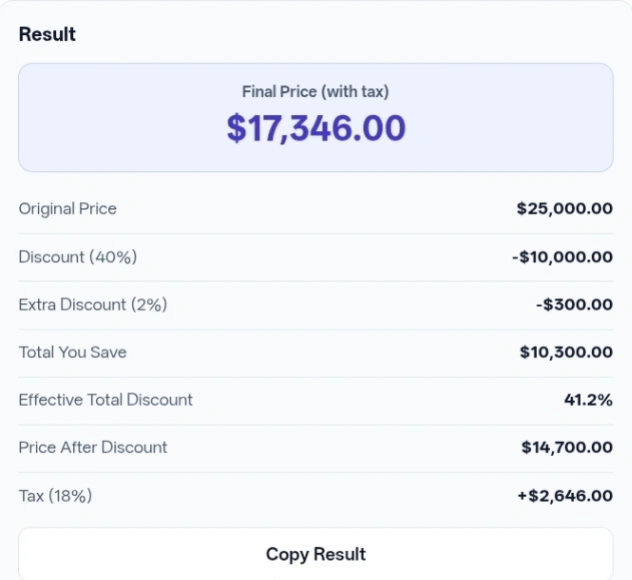
Input: Calculation Type set to “Find sale price from discount %”, Original Price 1500, and Discount (%) 20. Action: Click Calculate. Result: The tool shows a Final Price of 1,200.00 and a total savings of 300.00.
Input: Original Price 1000, Discount (%) 20, and Extra Discount (%) 10. Action: Click Calculate. Result: The first reduction takes off 200.00, and the extra 10% takes off 80.00 from the 800.00 subtotal. The Price After Discount is 720.00, resulting in an Effective Total Discount of 28%.
Input: Original Price 1000, Discount (%) 20, and Tax (%) 18 (with extra discount left at 0). Action: Click Calculate. Result: The discounted price is 800.00. The 18% tax adds 144.00, bringing the Final Price (with tax) to 944.00.
Input: Calculation Type set to “Find discount % from sale price”, Original Price 2000, and Sale Price (after discount) 1500. Action: Click Calculate. Result: The output highlights a Discount Percentage of 25% and shows that you saved 500.00.
If you want to use the discount calculator quickly, you do not always have to click the main button with your mouse. If you are typing fast, just press the Enter key while inside any number field to instantly generate your results.
When dealing with stacked promotions, remember that a 20% off sale plus an extra 10% off coupon does not equal 30% off. The tool handles this math correctly behind the scenes, but keeping this in mind prevents surprises when looking at your effective total savings.
If your purchase does not involve tax or extra promotional codes, simply leave those specific fields at 0 or empty. The logic will ignore them and keep your final text breakdown clean.
If you realize you selected the wrong currency after running the numbers, just change the dropdown. The result panel will automatically refresh with the new symbol without requiring you to calculate again.
All math and data processing happens entirely inside your web browser using JavaScript. The numbers you type into the fields are not sent to an external API and are not written to a database by the tool. The tool does not use cookies or local storage for your entries.
Working out final costs during clearance events is fast and accurate when using this discount calculator. By handling stacked percentages and post-discount tax automatically, it gives you the exact numbers you need before you reach the checkout counter.
The button only appears after you successfully run a calculation. If there are no numbers to copy, or if an error occurs, the button remains hidden to prevent copying a blank summary.
If you leave a required field blank or enter a zero for the starting price, the tool immediately stops and displays a red error message. It will also hide any previous results so you are not looking at outdated numbers.
Yes, the interface is designed to be responsive. The side-by-side layout automatically stacks into a single vertical column on smaller screens, making it easy to tap in prices while walking through a store.
Once a calculation completes, the tool formats a text list of the lines shown on screen. When you click the copy button, it places that exact text on your device’s clipboard, ready to paste into a message or notepad.
Whenever you change the main dropdown to switch between finding a sale price and finding a percentage, the tool intentionally clears the screen. This ensures you do not accidentally read or copy an old summary that no longer matches your current input fields.
The tool automatically rounds all final money amounts to two decimal places at the very end of the calculation. Depending on how a specific store’s point-of-sale system handles rounding during intermediate steps, there can occasionally be a one-cent difference.